- /
- /
- /
- /
Examplify – Installation (Windows, Mac, iPad)
How to Install Examplify on your personal laptop:
Overview:
Examplify is the secure exam application provided by Exam Soft for taking digital exams. This guide explains how to download and install Examplify on your personal laptop
Prerequisites:
Supported operating system:
- Windows 10 or 11
- macOS 11.0 or later
- Default Chrome browser
Installation steps:
Download Examplify:
Please click on this link to download Examplify –
Select your operating system (Windows or Mac) and hit download option.
Note: (For Mac users – Please check your “macOS processor “i.e. either macOS ARM or macOS Intel processor and choose accordingly)
Always install the latest version of Examplify for better performance i.e
Latest Installers (as of this document):
- Windows Installer: Version 3.10.0
- macOS Installer (ARM / M1/M2 processors): Version 3.10.0
- macOS Installer (Intel processors): Version 3.10.0
Note: These are the most recent versions available at the time of writing (2/10/2026)
Install the Application:
- Find the file you just downloaded:
- Most browsers save it in a folder called Downloads.
- For Windows:
- Look for a file that ends with .exe (it’s the Examplify installer).
- Double-click it (click it twice quickly).
- A box will pop up asking you questions — just click Next or Install until it finishes.
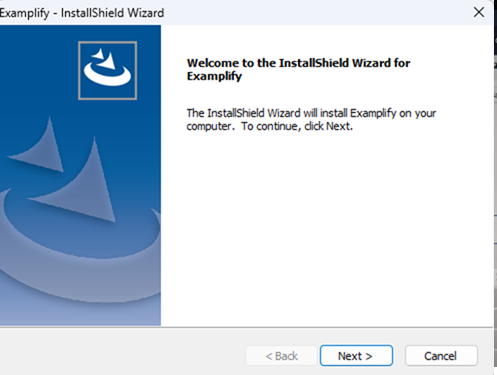
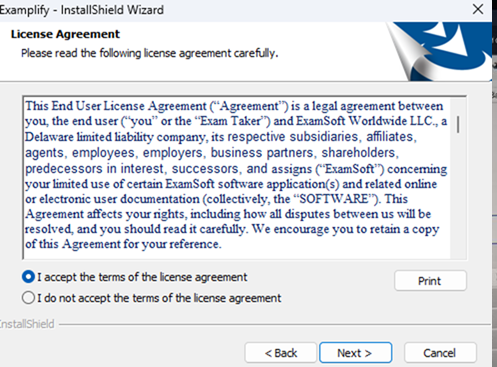
Select the option: I accept the terms of the license agreement and click on next à Click on Install and lastly Click on Finish.
- For Mac:
- Look for a file that ends with .dmg (the Mac installer).
- Double-click it. A new window will open showing the Examplify icon.
- Drag the Examplify icon into the Applications folder in that window.
- That’s it! The app is now on your Mac.
Log in / Register:
Launch Examplify app – On your search bar – Type in Examplify and Click on Open
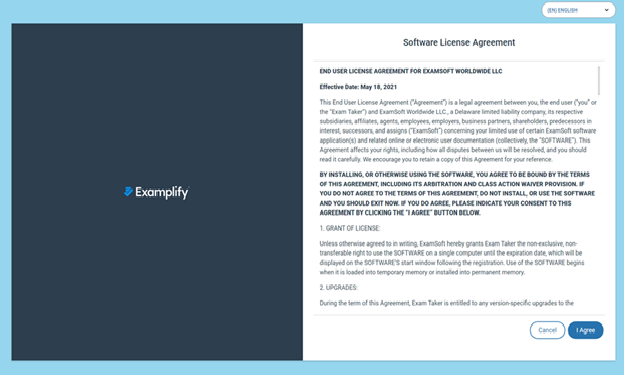
- Now, Click on I Agree option
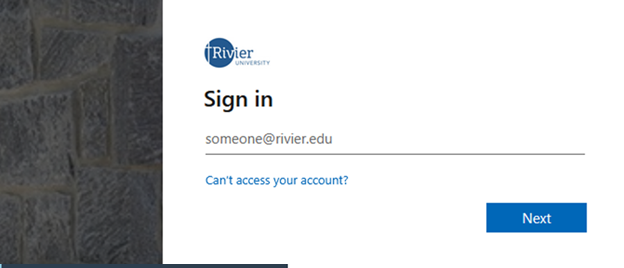
- Please search for and select Rivier university from the options.
- It should ask you to login – Please login with your rivier email and password and it should bring you to the dashboard of Examplify.
Rivier email : i.e student@rivier.edu
Note: If you are registered on Examplify by your professor, you should be able to see exams that have been posted for your course. If you do not see any exams posted that usually means you don’t have any but, you can always reach out to your course instructor for assistance.
If you get error at this point (If you don’t see Examplify dashboard)- Please reach out to your instructor for assistance.
How to install and use Examplify on your iPad:
Overview:
Examplify is the secure exam application provided by Exam Soft for taking digital exams. This guide explains how to install and set up Examplify on an iPad.
Prerequisites:
- iPad running iPadOS 14.0 or later
- Stable internet connection
- Apple ID for downloading apps from the App Store
- Sufficient storage space (at least 500 MB free)
Installation Steps:
- Open the App store
- Search for Examplify app
- Click on Download and verify with Apple id or face id.
- Open Examplify icon on your home screen.
- Launch Examplify app – On your search bar – type in Examplify and Click on Open
- Click on I Agree option

- Please search for and select Rivier university from the options.
- It should ask you to login – Please login with your Rivier email and password and it should bring you to the dashboard of Examplify.
Rivier email : i.e. student@rivier.ed
Note: If you are registered on Examplify by your professor, you should be able to see exams that have been posted for your course. If you do not see any exams posted that usually means you don’t have any but, you can always reach out to your course instructor for assistance.
If you get error at this point (If you don’t see Examplify dashboard)- Please reach out to your instructor for assistance.