- /
- /
- /
- /
Examplify – Troubleshooting Exams
Examplify – Basic Troubleshooting in Exams:
1)Correct browser:
It works best on Chrome browser and makes sure it is set as a default browser. Safari is not a supported browser.
How to set Chrome browser as a default browser:
Windows: Go to Settings > Apps > Default apps > Web browser and select Google Chrome.
Mac: Go to System Settings > Desktop & Dock (or General) > Default web browser and select Google
2)Unable to launch Examplify:
Start by restarting your PC or Mac. You should always check for latest updates and install the latest version.
3)Examplify: Relaunch Button Does Not Work
Issue
After updating from 3.0.0 to 3.1.0, clicking Relaunch does not reopen Examplify.
Resolution:
Close Examplify and manually install the update.
Windows
- Open File Explorer
- Go to:
- C:\ProgramData\Examplify\DownloadedVersion
- Open Update_3.1.0.exe and follow the prompts.
macOS
- Finder → Go → Go to Folder
- Enter:
- /Library/Application Support/Examplify/Downloaded Version
- Open Update_3.1.0.dmg and follow the prompts.
4)Exam Downloaded but Not Showing in Examplify
Sometimes an exam download gets interrupted. Exam Soft may think the exam was downloaded, but the file is incomplete and does not appear in Examplify.
Students are usually allowed only one download per device. If the exam does not appear in Examplify:
- Click Refresh Exam List in the bottom-left corner of the app.
- If the exam still does not appear, ask your professor to check your exam status on the Exam Soft website.
- If the system shows the exam was already downloaded, your professor must approve an additional download for your device before you can try again.
5)Computer Won’t Reconnect to the Internet After an Exam
During an exam, Examplify temporarily disables your computer’s Wi-Fi for security. Normally, Wi-Fi is re-enabled after the exam, but sometimes it takes longer or doesn’t reconnect right away.
If your Wi-Fi doesn’t come back automatically:
- Mac users:
- Wait a few moments — Wi-Fi may take extra time to re-enable.
- Click the Retry button in Examplify to upload your exam once Wi-Fi is back.
- If it still doesn’t connect, close Examplify, then reopen it. It should try to upload again.
- If needed, restart your computer.
- Windows users:
- Run the file EsWinsr.exe to restore your computer’s settings.
- C:\Program Files\Examsoft\Examplify\Services\EsWinsr.exe
- Right-click the file and select Run as Administrator.
- Restart your computer, then reopen Examplify. It should automatically upload your exam.
6)Re-Enter an Exam After a Restart/Reboot:
- If the interruption is brief, you will be able to re-enter the exam and continue from approximately where you left off. (Answers are saved at least every 60 seconds.)
- If the interruption is longer, you may be required to enter a resume code to regain access. Please contact the proctor, instructor, or exam manager for assistance.
- If the scheduled exam time has ended, you will not be able to re-enter the exam. In this case, contact the proctor, instructor, or exam manager for further guidance.
7)Exam Does Not Appear in Examplify
If your exam isn’t showing in Examplify:
- Click Refresh Exam List in the bottom-left corner.
- If it still doesn’t appear, contact your professor.
The most common reason is that you aren’t registered for the class in Exam Soft. This can happen if you’re in the wrong section. Your professor will need to check your account in the Exam Soft web portal and work with the Exam Soft admin to add you to the correct course. Once that’s done, the exam will appear in Examplify.
Why Examplify Freezes During an Exam
- Low device memory: Many apps open in the background can slow down Examplify.
- Older iPads or outdated iOS: Older hardware may struggle with exam files.
- Rapid switching: Moving quickly between calculator, questions, and typing can overload the app.
- Heavy exam content: Exams with large files, many exhibits, images, or formatting may cause freezes.
- Software glitches: Known bugs in certain Examplify versions can occasionally cause the app to freeze.
8) How to Fix or Prevent Freezes -During an exam if it freezes:
- Wait ~30 seconds — sometimes it resolves itself.
- Force-quit Examplify.
- Restart your iPad if needed.
- Reopen Examplify and resume the exam — answers are usually preserved.
- To reduce the risk before or during exams:
- Close all other apps before starting.
- Avoid rapid switching between calculator, questions, or typing.
- Use the calculator sparingly or consider scratch paper if allowed.
- Don’t use gestures, split screen, or multitasking during the exam.
- Keep your iPad and Examplify updated to the latest versions.
Important:
- If a freeze occurs, report it to your exam administrator — it helps classify it as a software issue, not user error.
9) Using the Examplify Calculator and Freezes
- Normally safe: The built-in calculator is designed to be stable.
- Possible issues: Freezes can happen if:
- iPad is older or low on memory (many apps open)
- Rapid switching between calculator ↔ questions ↔ typing
- Exam has heavy formatting or many exhibits
- Typical frozen behavior:
- Calculator opens but won’t close
- Screen becomes unresponsive
- Keyboard disappears
- Questions fail to load
- What to do if it freezes:
- Wait ~30 seconds
- Force-quit Examplify
- Restart iPad if needed
- Resume the exam (answers usually remain)
- How to reduce risk in future exams:
- Use the calculator sparingly
- Pause briefly before switching back to questions
- Avoid rapid tapping
- Close all other apps before starting the exam
- Don’t use split screen or gestures during the exam
- If allowed, consider using scratch paper for calculations
- Important for exam records:
- If the freeze occurs, report it to your exam administrator
- Helps classify the issue as software-related, not user error
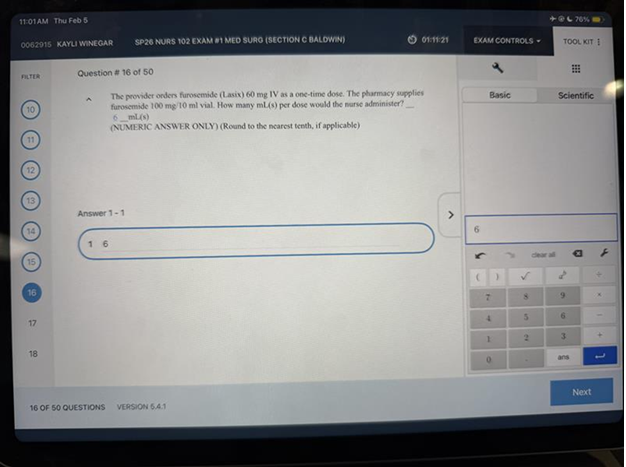
Example: User’s iPad froze while using the calculator. (Please Ignore the quality of the picture.)
Resolution: Attempted to restart the iPad using the power button and volume-up method, did not restart. Waited for a short period to allow the app to recover; it eventually resumed from where the user left off. In some cases, restarting the device may be necessary.
| SAML Error Codes | |
| Error Code | Description |
| errorcode=1 | Cookie not received during authentication |
| This may occur if the browser is blocking certain cookies or if the institution’s login page is not returning a cookie to ExamSoft. | |
| errorcode=3 | SAML processing error |
| A general SAML processing error. This is uncommon and can typically be resolved by attempting to log in again. | |
| errorcode=4 | User in an incorrect state on the ExamSoft backend |
| Relaunching Examplify usually fixes this. | |
| errorcode=5 | User is inactive |
| Indicates that the user’s Examsoft account is inactive. Resolve by setting the user to active within Examsoft. | |
| errorcode=6 | Incorrect or missing External ID |
| Your account has not been properly set up. Please reach out to your instructor so they can work with the appropriate people to create your account. | |
| errorcode=102 | Unsupported browser |
| Authentication failed because the user is accessing the portal with an unsupported browser, or the application is defaulting to one. | |
| Supported browsers: Chrome and Firefox only. Safari is not supported. | |
| Using any other browser, or having one set as the device default, may result in this error and prevent successful login or application access. |