- /
- /
- /
How to: Overlay Calendar Events in Outlook
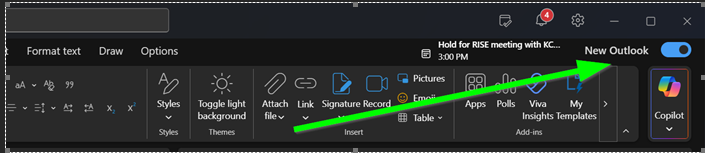
New Outlook Mail Client:
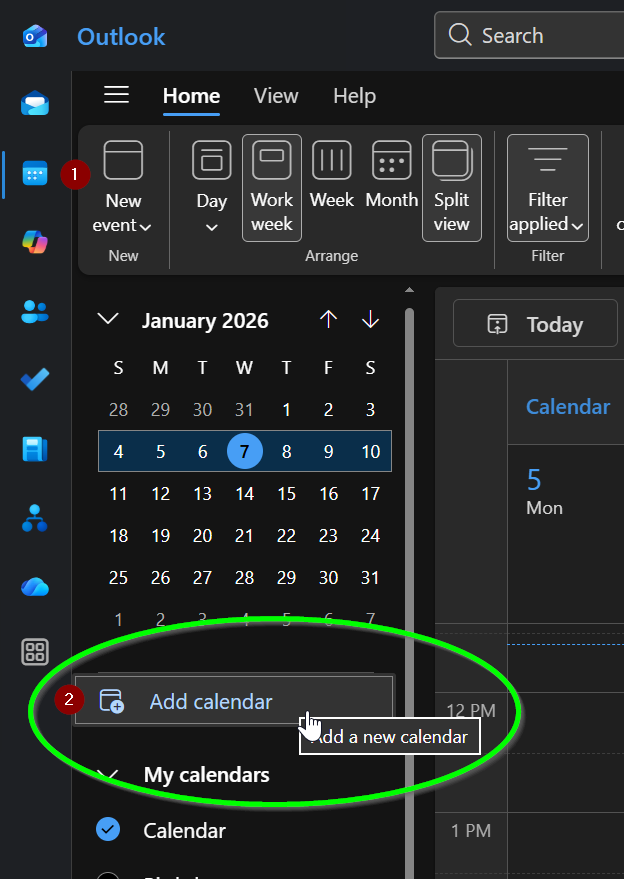
In Calendar view, click ‘Add calendar’ to open the add calendar dialog box.
-
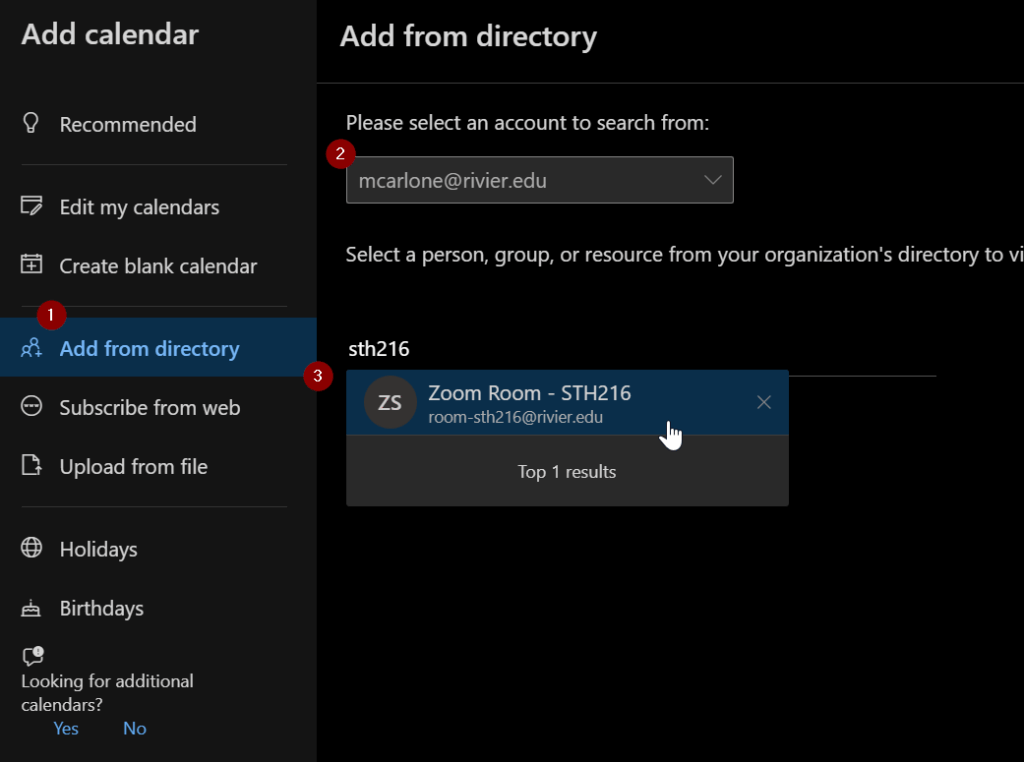
Add from directory
-
Select your own email address
-
Search for each room one by one
-
Click add
-
Repeat until you have added all the rooms
Back in calendar view, check all of the room calendars. Then, make sure “Split view” is not enabled
For Outlook Classic Mail Client:

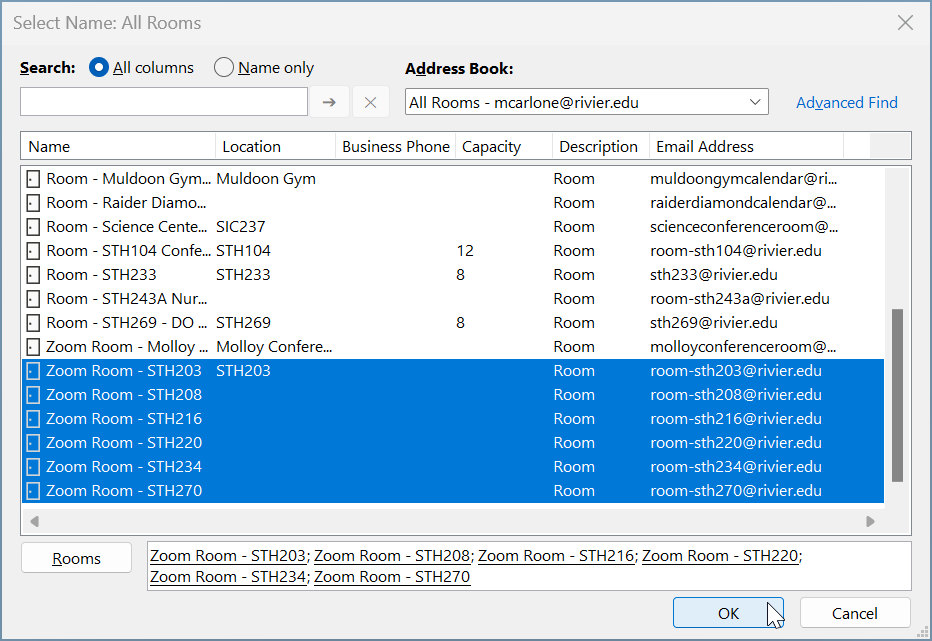
In calendar view, click “+Add Calendar” and choose “From Room List…”
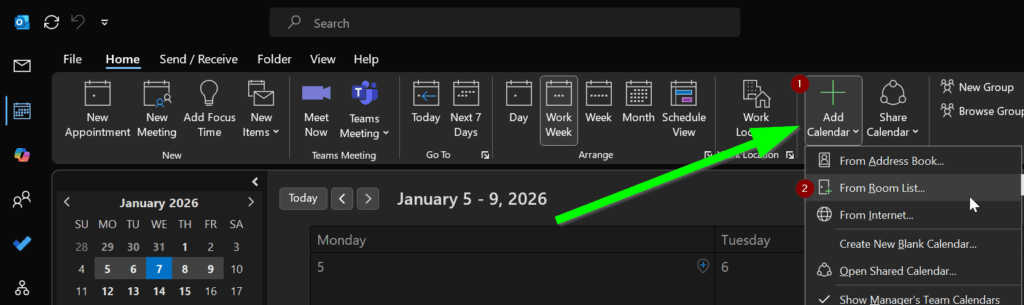
Highlight all of the rooms you want and click the Add button. Then hit OK.
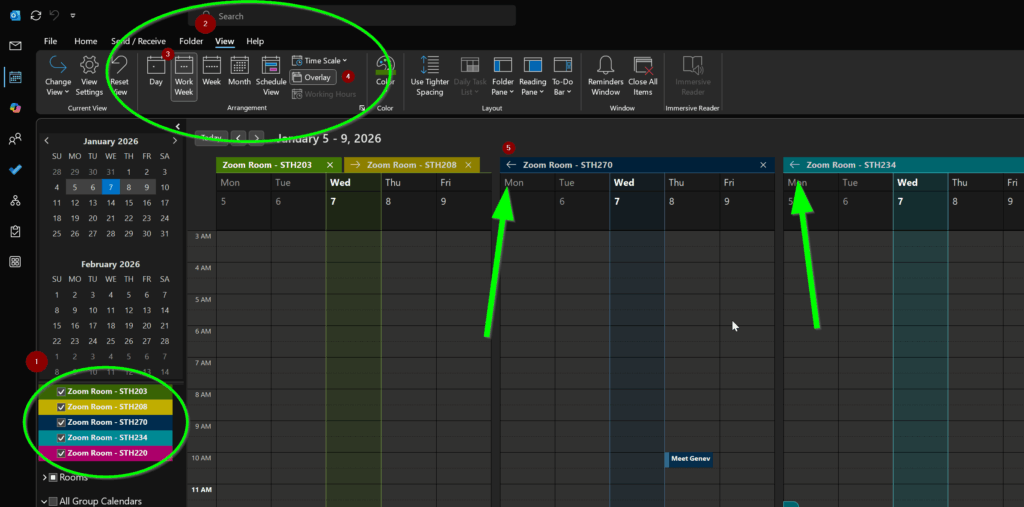
Back in calendar view, check all of the STH room calendars. In the menu ribbon, click View. Then make sure you are viewing “Work Week” and check the Overlay button. You may also need to click the left arrows next to each of the rooms calendars to merge them into the overlay view.
Was this post helpful?
Let us know if you liked the post. That’s the only way we can improve.