- /
- /
- /
Help! I can’t scan to my email! (How to: Scan to OneDrive)
Our new Ricoh copiers have built-in “Scan to Email” functionality, as well as the capability to scan documents to OneDrive. There are, however, limitations when it comes to scanning to email.
- Lower resolution/DPI
- a 25 MB email size limit
There are times when you may get the following error in your email:
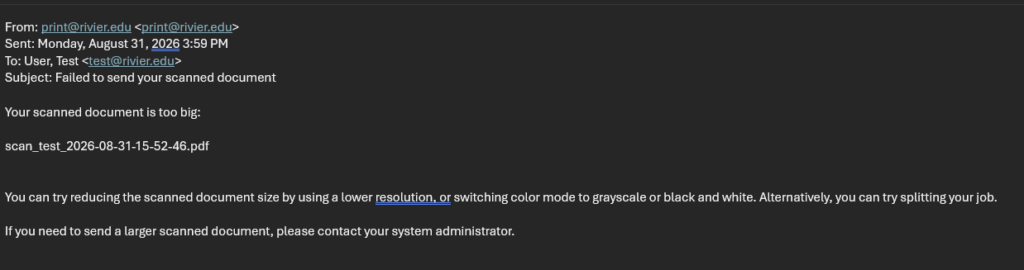
If you receive this error, please use the new “Scan to OneDrive” feature. Here are the steps:
- Tap your ID or type in your username and password
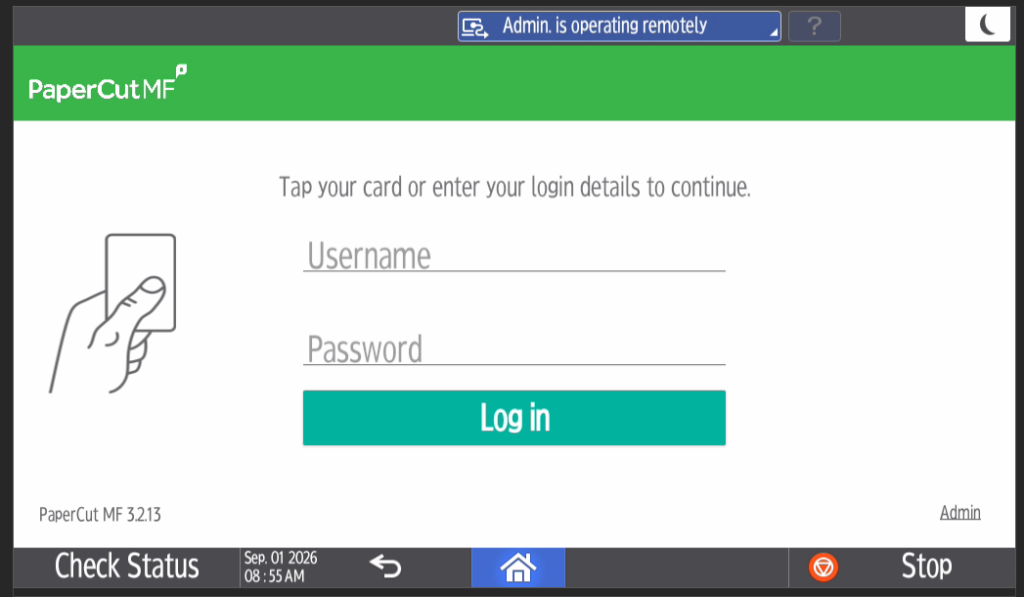
2. Tap “Scan”
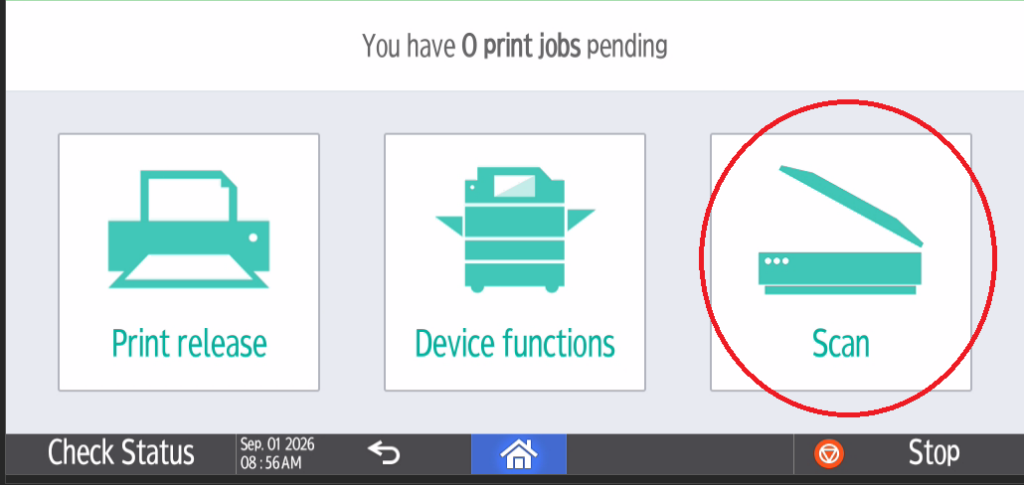 .
.
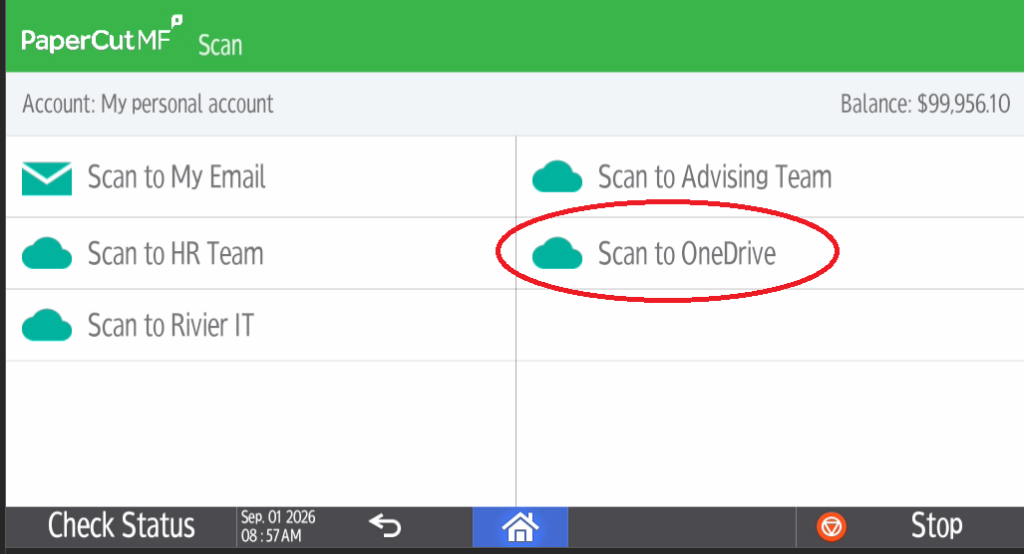
3. Tap “Scan to One Drive”; You may also see the option to scan to a specific Teams folder. If you do not see those, but would like to have that capability, please reach out to ITSupport@Rivier.edu.
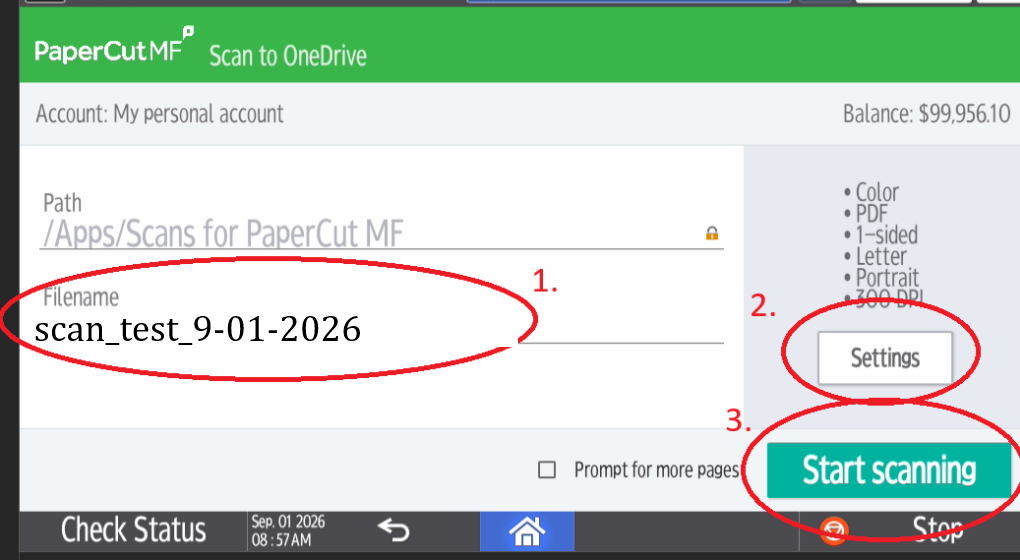
4. Adjust your file name and settings, if necessary, then tap “Start Scanning”
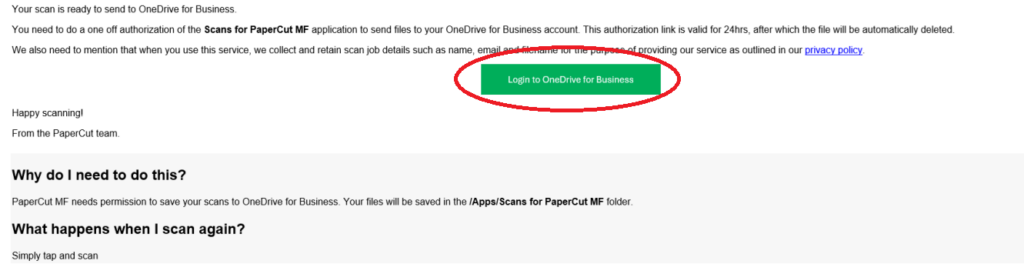
5. If this is your first time scanning to OneDrive, you will receive the following email. Please click “Login to OneDrive for Business” and sign in with your Rivier credentials. You only need to do this one time.
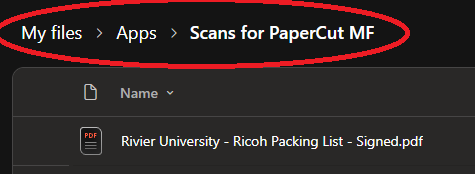
6. Your file will be located in the following folder: OneDrive/Apps/Scans for PaperCut MF
That’s it!
If you have any issues with the Scan to OneDrive process, please reach out to itsupport@rivier.edu.