- /
- /
- /
- /
- /
Windows App – How to Get Started and Access Azure Virtual Desktop (AVD)
How to Get Started
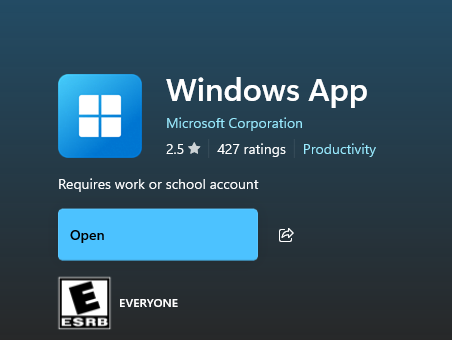
1. Install the Windows App
Download Windows App from the Microsoft Store (Windows) or the equivalent app store for your device. [learn.microsoft.com]
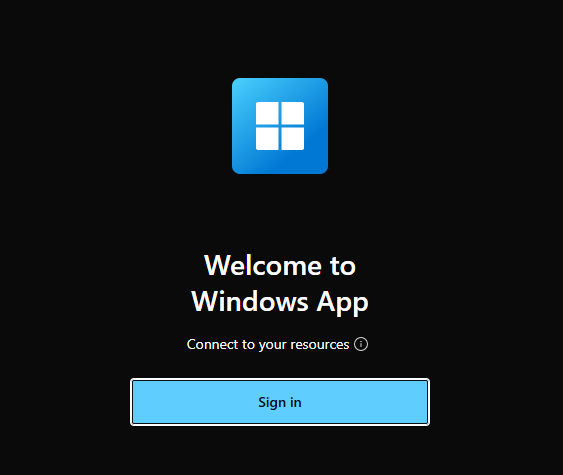
2. Sign In
Use your Rivier Account to sign in. You may sign in with multiple accounts and switch between them easily.
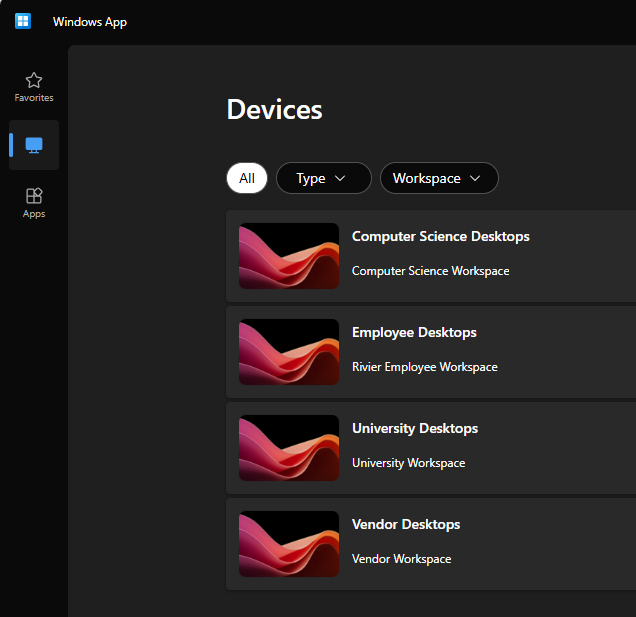
3. Access Assigned Resources
Once signed in, you’ll see the desktops and applications we’ve assigned to you.
4. Launch a Remote Session
Select a desktop or app to open it.
5. You’re done!
Once you’re fully loaded in, you can access all the apps
Was this post helpful?
Let us know if you liked the post. That’s the only way we can improve.