- /
- /
- /
How Do I Report Suspicious or Phishing Email? (Report Message Button)
We’ve seen a significant increase in phishing emails targeting our community. Unfortunately, several students have already shared personal information through these fraudulent messages.
These emails often look convincing and may include subjects that contain:
- Rivier University Notice
- River University account validation
- Refund
Here’s what you need to know:
- Never provide personal information such as your date of birth, passwords, or any sensitive details through online forms or email links.
- Scammers use urgency to trick you: messages claiming “Act today or your account will be terminated” or “Claim your refund now” are common tactics.
- These emails often look legitimate because it’s easy to copy logos and images from the internet.
How to spot a phishing email:
- Check the sender’s email address—not just the name. Many phishing emails come from Gmail, Hotmail, or other personal accounts.
- Ask yourself:
- Am I expecting a refund?
- Why would my account be terminated if I’m an active student?
What to do if you’re unsure:
- Do not reply to the suspicious email.
- Contact the appropriate department using a known official email address or phone number.
- When in doubt, reach out to the Help Desk immediately.
Taking a moment to pause and verify can protect your account and personal information.
Remember, no one at Rivier University will EVER ask for your password for any reason.
Thank you for staying vigilant and helping keep our community safe.
Help Desk Contact:
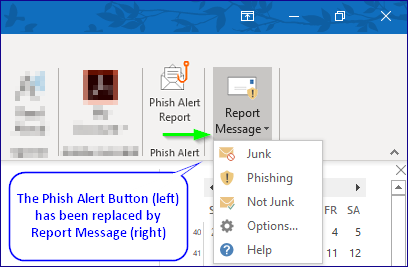
Please report any phishing email by using the Report Message Button in Outlook. Report Message can be found in Outlook on the web, Outlook Desktop client, and in our mobile phone’s Outlook app. It can be found in the Outlook ribbon, usually near the right side, or can be found in the ellipse (…) menu in Outlook on the web or on your phone.
When reporting the message, please indicate whether it is Junk (unwanted spam) or Phishing (malicious or attempting to deceive you).
Reporting the email alerts your local IT department as well as Microsoft, and automatically removes the email from your Inbox.
Thanks for doing your part in creating Rivier University’s human firewall!
Note: The Report Message button replaces the Phish Alert Button (PAB):
Related articles:
- What is PII and How Do I Keep It Secure?
- KnowBe4 Training How-To
- Email Support & Email Security (All KB Articles)